
Transactions

Credit Sale
-
Open app CodePay.
-
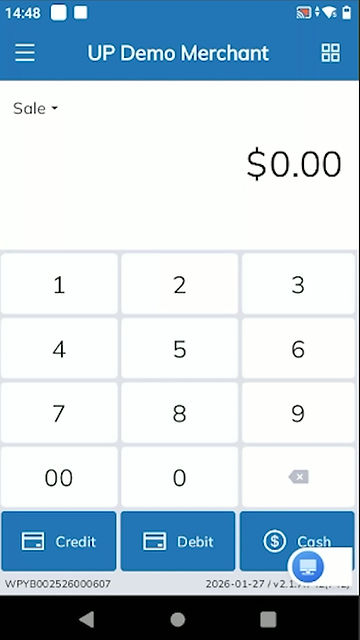
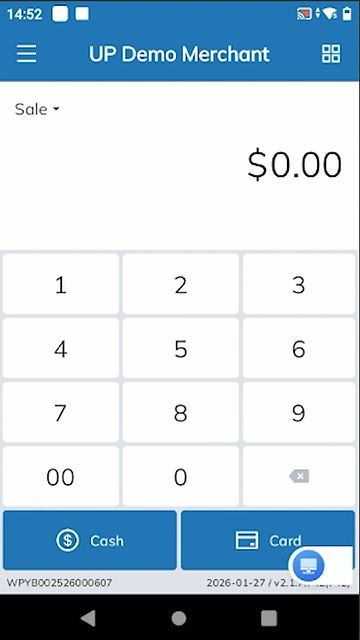
Enter the transaction amount.
-
Choose Credit for the payment.
-
Confirm the transaction.
-
The customer inserts, taps, or swipes their card.
-
After approval, Merchant copy receipt prints automatically.
-
Print the Customer copy receipt or bypass.


Tip Adjustment (Add Tips)

Method 1
-
Tap the ☰ icon (top left corner).
-
Select Transactions.
-
Choose the transaction you want to adjust.
-
Tap Tip Adjustment at the bottom of the screen.
-
Enter the tip amount → tap Done.

Void Transaction

Method 1
-
Tap the ☰ icon (top left corner).
-
Select Transactions.
-
Select the transaction you want to void.
-
Tap Void Transaction at the bottom of the screen.
-
Enter the Verification of Administrator password → Tap OK.
-
After approval, the receipt prints automatically.

Batch Close
-
Tap the ☰ icon (top left corner).
-
Select Batch Close.
-
Tap Close Batch Now.
-
Choose statement of batch then tap OK.
-
After approval, the receipt prints automatically.


Reprint Receipt
-
Tap the ☰ icon (top left corner).
-
Select Transaction.
-
Choose the transaction you want to reprint.
-
Tap the printer icon (top right corner).
-
Continue to print receipt → tap OK.
Refund
-
Open app CodePay.
-
Tap the ⊞ icon (top right corner) then select Refund.
-
Unreferenced:
-
Enter the refund amount and tap OK.
-
-
By reference:
-
Enter the original transaction receipt number and confirm the refund amount.
-
Select All to refund the full amount, then tap Refund.
-
-
Enter the Verification of Administrator password → Tap OK.
-
After approval, the receipt prints automatically.


Report
-
Tap the ☰ icon (top left corner).
-
Select Report.
-
Tap the printer icon (top right corner) if need to print report.
-
To view past reports, select History and choose the desired date.
